নতুন কিছু জানার জন্য সাথেই থাকুন, আর পোস্ট গুলি Like করুন।

Sunday, November 4, 2012

How to use PC mouse pointer without a mouse

PC mouse pointer when the mouse without the need to learn to manage.

At first you Click Alt+Left Shift + Num Lock Button + OK


Key are these red spots all over the back and forth, Between 5 and the Normal Button, To return to the default position when the press Left Alt + Left Shift + Num Lock. Stay good.


How To Setup Snow Effect In My Blog

Read more »

How to use PC mouse pointer without a mouse

PC mouse pointer when the mouse without the need to learn to manage.

At first you Click Alt+Left Shift + Num Lock Button + OK


Key are these red spots all over the back and forth, Between 5 and the Normal Button, To return to the default position when the press Left Alt + Left Shift + Num Lock. Stay good.


How To Setup Snow Effect In My Blog

Read more »

How to Create Matrix Wallpaper

Matrix is a popular Hollywood movie. This movie has great graphics impressed us everyone. So we'll have to follow the steps below on how Photoshop can easily create a matrix can be wallpaper.

Step-> 01 :

At first Open your Photoshop,

New File (Ctrl+N), File size your choice, I choice (1024x768) select ok.

Step-> 02 :

Select the White Background, next Filter >Texture > Grain and follow the setting shown.


Step-> 03 :

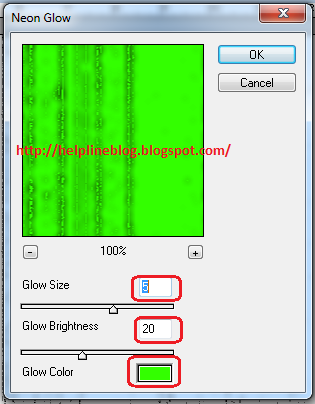
Next Filter > Artistic > Neon Glow and follow the setting shown.


Step-> 04 :

Next Filter > Stylize > Glowing Effect and follow the setting shown.


OK--

The choice of text created with your desired wallpaper. 


Thank,


Canon C100 Review

Read more »

How to Create Matrix Wallpaper

Matrix is a popular Hollywood movie. This movie has great graphics impressed us everyone. So we'll have to follow the steps below on how Photoshop can easily create a matrix can be wallpaper.

Step-> 01 :

At first Open your Photoshop,

New File (Ctrl+N), File size your choice, I choice (1024x768) select ok.

Step-> 02 :

Select the White Background, next Filter >Texture > Grain and follow the setting shown.


Step-> 03 :

Next Filter > Artistic > Neon Glow and follow the setting shown.


Step-> 04 :

Next Filter > Stylize > Glowing Effect and follow the setting shown.


OK--

The choice of text created with your desired wallpaper. 


Thank,


Canon C100 Review

Read more »

VPN Client Setup

How to Setup a windows XP VPN server- Now that the Server end of the VPN is set up, you need to create a VPN connection on your laptop to use whenever you are using an insecure wireless network---


Firstly bring up the control panel by clicking on Start -> Control Panel. If the control panel is in Classic View as show as shown below, then click in Category View to see the simplified panel.

From the Category View click on Network and Internet Connections-


Now Click on Network Connections from the or pick a control icon section-


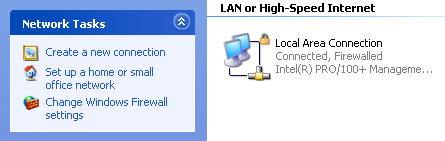
Select the Create a new connection from the menu on the left screen-


You should now see the New Connection Wizard click next to start.


Select Connect to workplace at my work and click next to continue.


Select Virtual Private Network as the connection type and click next to continue.


Give the new VPN connection a name and click next to continue-


If you already have a dialup or VPN connection setup on your laptop you will now be asked if you want to always dial one of these existing connections before you make the VPN connection. Because we are going to be using a wireless link to get internet connectivity select Do not dial the initial connection and click next to  continue. If you don't already have a dialup ot VPN connection setup then this screen will not appear, and you will go straight to the next screen.

  
Now enter either the Hostname your ISP has given, or the IP address they;ve given you and click to continue. If you don't have a static IP address, then it may be easier to use Dynamic DNS such as from dyndns.com to give you a static hostname for your dynamic address.


Now click Finish and you new VPN connection will be ready to use.


How To Setup A Windows XP VPN Server

Read more »

VPN Client Setup

How to Setup a windows XP VPN server- Now that the Server end of the VPN is set up, you need to create a VPN connection on your laptop to use whenever you are using an insecure wireless network---


Firstly bring up the control panel by clicking on Start -> Control Panel. If the control panel is in Classic View as show as shown below, then click in Category View to see the simplified panel.

From the Category View click on Network and Internet Connections-


Now Click on Network Connections from the or pick a control icon section-


Select the Create a new connection from the menu on the left screen-


You should now see the New Connection Wizard click next to start.


Select Connect to workplace at my work and click next to continue.


Select Virtual Private Network as the connection type and click next to continue.


Give the new VPN connection a name and click next to continue-


If you already have a dialup or VPN connection setup on your laptop you will now be asked if you want to always dial one of these existing connections before you make the VPN connection. Because we are going to be using a wireless link to get internet connectivity select Do not dial the initial connection and click next to  continue. If you don't already have a dialup ot VPN connection setup then this screen will not appear, and you will go straight to the next screen.

  
Now enter either the Hostname your ISP has given, or the IP address they;ve given you and click to continue. If you don't have a static IP address, then it may be easier to use Dynamic DNS such as from dyndns.com to give you a static hostname for your dynamic address.


Now click Finish and you new VPN connection will be ready to use.


How To Setup A Windows XP VPN Server

Read more »

Play Station

get this widget here

Blogger news

Help Line Blog